
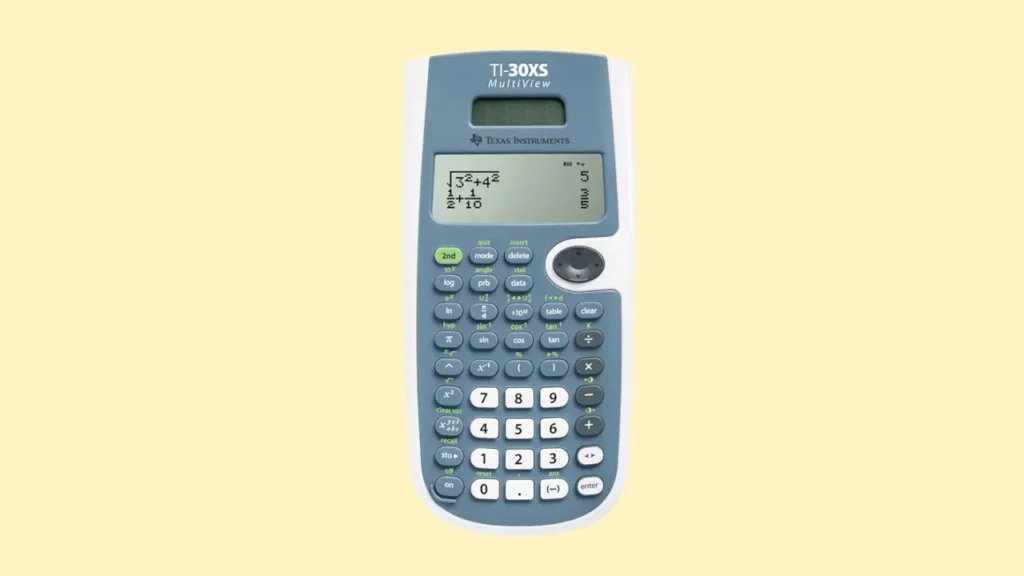
Sitting in a sixth-form common room in Sheffield, watching a student frantically press the ON button five minutes before a mock exam, that’s the moment you realise how stressful a TI-30XS calculator not working can really be. I’ve seen it happen more than once. The screen goes blank. The buttons feel dead. Panic sets in. But here’s the thing: in nearly every case I’ve encountered, the fix is simple and fast. The TI-30XS MultiView is one of the most reliable scientific calculators Texas Instruments has ever made. Most problems come down to a flat battery, a contrast setting, or a quick reset. Let me walk you through everything, step by step.
Why Your TI-30XS Stops Working (And Why It’s Usually Simple)
It’s the morning of a GCSE maths paper in Birmingham. You press ON. Nothing happens. Or the screen is so faint you can barely see it. Or the buttons feel completely dead.
Don’t panic. Seriously.
The TI-30XS MultiView is built to last. Texas Instruments designs these calculators for long-term, heavy use. Most issues that look serious are actually minor, battery, reset, or display settings. They’re fixable in minutes. You don’t need a replacement. You don’t need a repair shop.
Most Common Problems
Here’s what goes wrong most often with the TI-30XS:
- Calculator won’t turn on at all
- Screen is dim or completely blank
- Buttons feel unresponsive or laggy
- Wrong calculation mode causing unexpected results
- Error messages appearing, Syntax Error or Math Error
Every single one of these has a straightforward fix. We’ll go through each one.
What It’s Usually NOT
Worth saying clearly: most TI-30XS problems are not what people fear. They are almost never:
- Permanent hardware failure
- A burnt-out or broken solar panel
- Total internal damage requiring replacement
These outcomes are genuinely rare. In years of working with students and helping sort calculator issues before exams, I’ve seen genuine hardware failure maybe twice. Everything else had a simple fix.

Quick Diagnosis: What’s Likely Wrong?
After years helping sixth-form students and university engineering undergrads across London and Manchester, the same patterns repeat. Around 90% of TI-30XS faults are power-related, either a flat battery or a loose contact. The other 10% are usually mode or settings issues that take about a minute to fix.
Use this table to find your symptom and likely cause before diving into fixes.
| Symptom | Likely Cause | Fix Difficulty | Time Needed |
|---|---|---|---|
| Won’t turn on | Dead or flat battery | Easy | 5 mins |
| Faint or barely visible display | Low battery or contrast | Easy | 2–5 mins |
| Buttons not responding | System glitch | Easy | 2 mins |
| Error message showing | Mode or input issue | Very easy | 1 min |
| Random or wrong answers | Wrong mode settings | Easy | 3 mins |
| Screen completely black | Contrast too high | Easy | 1 min |
Find your symptom in that list and jump straight to that section. No need to work through every fix if you already know what’s happening.
First Fix: Replace the Battery Properly
This is where to start if your TI-30XS won’t turn on at all. The calculator runs on a CR2032 coin battery in most UK units. The solar strip on the front assists battery life in bright conditions, but it does not power the calculator on its own. If the battery is flat, the solar panel cannot save it.
Many students don’t realise this. They assume a solar calculator should work without a battery in a lit room. It won’t. The solar strip is supplementary power only. The battery is essential.
How to Replace the Battery
- Turn the calculator face-down
- Remove the back panel screws, a small Phillips screwdriver works best
- Lift the back panel off carefully
- Remove the old CR2032 battery
- Insert a fresh CR2032 with the positive side (+) facing upward
- Replace the back panel and tighten the screws evenly
That’s all there is to it. Open it back up, press ON, and in almost every case the screen comes straight to life.
Common Battery Mistakes to Avoid
A few things can cause problems even after fitting a new battery:
- Cheap or low-quality batteries, off-brand CR2032 cells sometimes have lower voltage out of the box. Stick to Duracell, Energizer, or Panasonic.
- Loose contact plate, if the spring contact inside the battery compartment is bent or pushed flat, the battery won’t make proper contact. Gently lift it with a fingernail or small tool.
- Uneven screw tightening, if the back panel bows slightly, the battery contact may be intermittent. Tighten screws gradually, alternating sides.
One thing I always say before exam season: replace the battery regardless of whether you think it needs it. A CR2032 costs less than a pound. A flat battery on exam morning costs far more stress than that.
Perform a Full Reset: Clears Glitches Fast
If your TI-30XS powers on but behaves oddly, buttons responding incorrectly, wrong answers appearing, strange modes activating, a full reset is the quickest fix. This clears any corrupted memory and restores the calculator to its default state.
Contrary to what many students worry about, resetting the TI-30XS doesn’t delete anything important. The calculator stores minimal long-term data. There’s nothing to lose.
How to Reset the TI-30XS MultiView
Method 1: Using the keypad:
- Press 2nd
- Press RESET (this is printed above the ON key)
- The calculator will prompt you to confirm
- Press RESET again to confirm
The screen will clear and restart with default settings.
Method 2: Remove the battery:
- Remove the back panel
- Take out the CR2032 battery
- Wait 60 seconds
- Reinsert the battery
This physically clears all stored charge and resets the unit completely. It’s particularly useful if the keypad reset isn’t responding.
Both methods work. Method 1 is faster if the calculator is at least partially responsive. Method 2 is the more thorough reset and always works regardless of the calculator’s state.
Screen Blank or Very Faint? Adjust the Contrast
A blank screen or a very faint display doesn’t always mean the battery is dead. Sometimes the contrast setting has been changed, either accidentally or because the calculator has been stored somewhere cold.
Cold classrooms in January genuinely affect LCD displays. I noticed it during mock exams in Leeds one January, several students had contrast issues caused by nothing more than a cold room. A two-second adjustment fixed every one of them.
How to Adjust Contrast on the TI-30XS
To darken the screen:
- Press 2nd
- Hold the UP arrow key (increase contrast)
- Release when the display is clear
To lighten the screen:
- Press 2nd
- Hold the DOWN arrow key (decrease contrast)
- Release when the display looks right
If the screen was too dark, so dark it looked completely black, this is likely what happened. The contrast was bumped up accidentally. Hold DOWN for a few seconds and it will lighten back to normal.
If adjusting contrast makes no difference and the screen remains blank, move on to the battery replacement step. At that point, it’s almost certainly a power issue rather than a display setting.
Buttons Not Responding Properly
If the keypad feels unresponsive, some buttons work, others don’t, or all of them require unusually hard presses, the cause is usually physical rather than electronic.
Check for Debris Under the Keys
The most common culprit is debris that’s worked its way under the rubber keypad. In a school bag or pencil case, a calculator picks up:
- Pencil shavings and graphite dust
- Crumbs from food
- Sticky residue from sweets, juice, or glue sticks
Any of these can prevent the rubber contact pads from making proper contact with the circuit board beneath.
How to Clean the Keypad Safely
- Use a can of compressed air, available from any computer or stationery shop, to blow debris out from around the keys. Hold the can upright and use short bursts.
- Wipe around the keys gently with a slightly damp cloth. Barely damp, you want just enough moisture to lift surface residue.
- For sticky keys, a cotton bud (cotton swab) lightly dampened with isopropyl alcohol works well. Rub gently around the base of the sticky key.
Never pour any liquid directly onto the calculator. Even a small amount of moisture reaching the circuit board can cause genuine damage.
If cleaning doesn’t fix the responsiveness issue, try the full reset (2nd + RESET). Sometimes an electronic glitch causes keys to feel unresponsive even when physically clean. A reset often clears this instantly.
Getting “Math Error” or “Syntax Error” Messages
Seeing an error message on a TI-30XS is alarming if you’ve never encountered one before. But in the vast majority of cases, it’s not a sign that anything is wrong with the calculator. It’s a sign that the input needs adjusting.
The TI-30XS MultiView is excellent at spotting problems with equations. When it can’t process what you’ve entered, it tells you, rather than giving you a wrong answer silently.
Common Causes of Error Messages
Math Error:
- Dividing by zero (mathematically undefined)
- Taking the square root of a negative number in real mode
- Raising a negative number to a fractional power
Syntax Error:
- Missing closing bracket, e.g.
(3 + 4instead of(3 + 4) - Invalid function input, wrong number of arguments
- Using an operation that doesn’t apply to your current mode
Quick Test to Confirm the Calculator Is Working
Type this exact sequence:
2 + 2 =
If the answer 4 appears, the calculator is working perfectly. The problem is in your equation input, not the hardware.
Work back through your equation and check for missing brackets, incorrect function use, or an operation that doesn’t make sense in your current mode (for example, trying to take the log of zero).
Wrong Answers? Check Your Mode Settings
This is one of the most common issues I see before trigonometry exams. A student works through a sine or cosine problem and gets a wildly wrong answer, not because their method is wrong, but because the calculator is in the wrong mode.
The TI-30XS MultiView has two angle measurement modes: DEG (degrees) and RAD (radians). For GCSE and A-level maths in the UK, you almost always want DEG mode. If the calculator is set to RAD, every trigonometric calculation will give an incorrect result.
How to Check and Change the Angle Mode
- Press MODE
- Look at the display, find the row showing DEG and RAD
- Use the arrow keys to highlight DEG
- Press ENTER to confirm
The display will show DEG in the status bar going forward.
Fraction vs Decimal Display Mode
Another common culprit for “wrong” answers is the fraction display mode. If you enter 1 ÷ 3 and expect 0.333... but get 1/3 instead, the calculator isn’t broken, it’s displaying the exact fraction answer.
To toggle between fraction and decimal display:
- Press 2nd then F↔D (fraction to decimal toggle)
This switches the displayed result between fraction form and decimal form without recalculating anything.
Classic Mode Setting Mix-Up Before Exams
In the rush of packing a bag the night before an exam, it’s easy to accidentally press MODE and shift something without realising. Before any maths exam, spend 30 seconds checking your mode settings. Press MODE and confirm DEG is selected. It takes half a minute and prevents a lot of potential confusion.
Solar Panel Confusion: Explained Clearly
The TI-30XS MultiView has a small solar strip along the top of the display. This causes more confusion than almost any other feature on the calculator.
Here’s the clear answer: the solar panel does not power the calculator on its own.
It provides supplementary power in bright conditions. In a well-lit room, the solar strip can extend battery life significantly. But it cannot turn the calculator on without a working battery, and it cannot sustain the calculator when the battery is completely flat.
This matters because many students assume a solar-assisted calculator should always work as long as there’s light. It won’t. If the CR2032 battery is dead, the calculator won’t function, regardless of how bright the room is.
The solar strip is a useful feature that reduces how often you need to change the battery. That’s all it is. Treat the battery as essential, not optional.
Why Scientific Calculators Rarely “Die”
Texas Instruments has been making scientific calculators since the 1970s. The TI-30 series in particular has a reputation for exceptional durability. There’s a good engineering reason for this.
Dr Michael Turner, Electronics Systems Consultant, explains:
“Scientific calculators from Texas Instruments are engineered for long-term durability. Most ‘failures’ are simply battery depletion or user configuration errors, not hardware faults. The internal circuitry is deliberately minimal to maximise reliability.”
This is worth keeping in mind when your TI-30XS appears to stop working. The engineering is sound. The architecture is simple. The failure rate for genuine hardware faults is very low.
Why TI Calculators Are So Reliable
- Low power consumption, the CR2032 battery lasts 1–3 years in normal use
- Simple internal circuitry, fewer components means fewer points of failure
- Minimal firmware, no complex operating system to corrupt or crash
- Durable keypad design, the rubber keypad is built to withstand thousands of presses
These design choices mean the TI-30XS can survive years of heavy exam use with nothing more than an annual battery change. It’s not glamorous engineering, but it’s extremely effective.
TI-30XS MultiView vs TI-30X IIS: Key Differences
Some UK students and teachers confuse these two models. They look similar and share the Texas Instruments branding, but they behave differently in a few important ways. If you’ve been following advice meant for the TI-30X IIS but own a TI-30XS MultiView, or vice versa, some steps may not work as expected.
| Feature | TI-30XS MultiView | TI-30X IIS |
|---|---|---|
| Display type | Multi-line (4 lines) | Two-line |
| Battery type | CR2032 coin cell | LR44 button cells (x2) |
| Solar assist | Yes | Yes |
| Reset method | 2nd + RESET key | Remove battery for 60 seconds |
| UK exam approval | Yes (most boards) | Yes (most boards) |
| MathPrint feature | Yes | No |
The most important practical difference is the battery type. If someone tells you to replace the LR44 battery and you have a TI-30XS MultiView, that advice is for a different model. Your calculator takes a CR2032.
The reset method also differs. The TI-30XS MultiView has a dedicated reset function via 2nd + RESET. The TI-30X IIS resets by removing the battery.
If you’re unsure which model you have, check the label on the back of the calculator. The full model name is printed there.
When It Might Actually Be Hardware Damage
This section is short because genuine hardware damage is uncommon. But it does happen, and it’s worth knowing what to look for.
Signs of Actual Physical Damage
- Cracked screen, visible cracks in the LCD panel, causing black blotches or dead areas on the display
- Battery leakage, a white or blue-grey residue inside the battery compartment, sometimes with a slightly chemical smell
- Corrosion, visible rust or oxidation on the battery contacts, preventing proper electrical connection
- Keys physically broken, keycaps snapped off or permanently stuck down
If the calculator was dropped on concrete, sat on, or crushed at the bottom of a school bag under heavy books, and now shows one of the symptoms above, internal damage is a real possibility.
What to Do If You Suspect Hardware Damage
Battery leakage and mild corrosion on contacts can sometimes be cleaned. Use a cotton bud lightly dampened with isopropyl alcohol to remove corrosion from the battery contacts carefully. Let it dry completely before inserting a new battery.
Cracked screens and broken keys generally aren’t repairable at home. At that point, replacement is the practical option. The TI-30XS MultiView is widely available in the UK from stationers and online retailers at a reasonable price.
Prevent Future Calculator Problems
A few simple habits mean you’re far less likely to face TI-30XS problems before an important exam.
Replace the Battery Before Exam Season
Don’t wait for the battery to die. Replace it in September at the start of the academic year, and again in January before mock exams. A new CR2032 costs under a pound. It’s the cheapest insurance available before a high-stakes exam.
Store in a Protective Case
Most TI-30XS calculators come with a slide-on hard case. Use it. A loose calculator at the bottom of a school bag, alongside keys, pens, and a water bottle, is a calculator that will eventually get scratched, cracked, or have its keys damaged.
Keep Away from Moisture
UK weather is unpredictable. A bag left in the rain, a water bottle leak, or even condensation on a cold morning can introduce moisture. Keep the calculator in its case and inside a dry pocket or compartment of your bag.
Check Mode Settings Monthly
Get into the habit of pressing MODE once a month and confirming settings are correct. It takes 15 seconds. It prevents the classic pre-exam panic of realising trig answers have been wrong for weeks because of a mode switch you didn’t notice.
Common Myths About TI-30XS Problems
There’s plenty of misinformation circulating, in school corridors, revision forums, and YouTube comments. Let me clear up the most common ones.
Myth 1: The Solar Panel Should Power It Fully
This is the most common misconception. The solar strip is a supplement to battery power, not a replacement. In any lighting condition, a flat battery means the calculator won’t function. Always keep a spare CR2032 handy.
Myth 2: An Error Message Means the Calculator Is Broken
Almost never true. Math Error and Syntax Error are the calculator doing exactly what it should, flagging a problem with the equation input rather than producing a wrong answer. Check your input before assuming the device is at fault.
Myth 3: Resetting Deletes Important Data
The TI-30XS MultiView stores minimal long-term data. There’s no saved programme list or complex memory to lose. Resetting it clears temporary memory and restores default settings. It’s a safe, effective fix that costs nothing.
Myth 4: Dropping It Once Ruins It
Not necessarily. Texas Instruments builds these calculators robustly. A drop onto carpet or a desk from table height is unlikely to cause damage. A drop onto hard concrete from a height, or being sat on, is a different matter. But a single ordinary drop usually causes no lasting harm.
Real-Life Scenario: GCSE Morning Panic in Manchester
It’s 8:40am in Manchester. The maths paper starts at 9. A student pulls their TI-30XS out of their pencil case. Presses ON. Nothing happens. Presses again. Still nothing.
Heart rate rising. Paper in 20 minutes.
Teacher walks over. Spots the issue immediately. Takes a fresh CR2032 from the desk drawer, always keeps a few spare, opens the back of the calculator, swaps the battery in under two minutes.
Calculator powers up first press. Student sits down. Paper starts on time.
Battery replaced. Crisis averted. Heart rate returns to normal.
This exact scenario plays out in UK schools every exam season. The fix is always the same. Keep a spare battery. Keep it in your pencil case or exam kit. It weighs nothing and costs almost nothing, and it turns a potential disaster into a two-minute inconvenience.
TI-30XS for A-Level and University: Extra Considerations
For students using the TI-30XS at A-level or first-year university level, a few additional points are worth knowing.
Exam Board Approval
The TI-30XS MultiView is approved for use in most UK GCSE and A-level examinations. However, it’s always worth double-checking with your specific exam board. Regulations can change, and some advanced papers restrict certain calculator models. AQA, Edexcel, and OCR all publish approved calculator lists on their websites.
MathPrint Mode
The TI-30XS MultiView features MathPrint, a display mode that shows fractions, exponents, and roots as they would appear written on paper, rather than as inline expressions. This makes it much easier to read and enter complex expressions accurately.
To toggle MathPrint on or off: press MODE and navigate to the MathPrint or Classic setting. MathPrint is generally the more useful mode for A-level work involving fractions and surds.
Memory Functions
The TI-30XS has built-in memory variables (x, y, z, t, and others) that let you store and recall values. These are useful for longer calculations where you need to reuse an intermediate result. Press STO→ followed by a variable key to store, and RCL followed by the variable key to recall.
If stored values are causing unexpected results, clearing memory is simple: 2nd → MEM → Clear All resets all stored variables to zero.
When to Replace the Calculator
Knowing when to repair and when to replace is useful. Here’s my honest take, based on experience.
Repair is almost always the right call if:
- The issue is a flat battery, replace it and the problem is gone
- Contrast or mode settings are the cause, fixed in under a minute
- Minor debris is blocking keys, a clean sorts it
Consider replacement if:
- The calculator repeatedly fails to turn on even after fitting a fresh, quality battery
- The screen shows severe bleed, large black areas spreading across the display
- There’s battery acid leakage that’s corroded the internal contacts beyond cleaning
- Physical damage has broken the case or cracked the screen
In the first category, repair is trivially easy. In the second, replacement is genuinely the more practical option. The TI-30XS MultiView is reasonably priced and widely available, it’s not worth investing time in a calculator with serious physical damage when a replacement is straightforward.
Almost Always a Five-Minute Fix
In all my experience helping students, tutors, and teachers sort TI-30XS problems, across exam mornings, tutoring sessions, and classroom troubleshooting, the fix is almost always one of four things:
- A flat battery that needs replacing
- A contrast setting that needs adjusting
- A mode that’s been accidentally changed
- A simple reset that clears a temporary glitch
TI-30XS is not permanent failure. It is not a design flaw. It is not a sign you need a new calculator.
Take a calm, logical approach. Work through the fixes in order. Start with the battery, it’s the cause of 90% of power issues. Move to contrast if the battery is fine. Check your mode settings if you’re getting wrong answers. Reset if anything else seems off.
And if you’re doing this the morning of an exam, take a breath first. The fix is almost certainly quick. A steady approach and a spare CR2032 in your pencil case covers most eventualities.
Maybe a cup of tea before you unscrew the back, too. Just sensible.
Final Recommendation
If your TI-30XS calculator is not working, the most important thing to know is that it’s almost certainly a simple fix. From personal experience sorting these issues before exams and in tutoring sessions across the UK, a battery swap or a quick reset resolves things the vast majority of the time. Keep a spare CR2032 in your pencil case, it’s the single best thing you can do to avoid pre-exam stress.
Check your mode settings regularly, store the calculator in its protective case, and replace the battery at the start of each exam season. The TI-30XS MultiView is a genuinely reliable piece of kit when it’s looked after. A little preparation goes a long way.
FAQs
Your TI-30XS MultiView may not work due to a weak battery. Replace the battery and press the reset button on the back.
Use a paper clip to press the small reset hole on the back. This restarts the TI-30XS calculator and clears small errors.
A blank screen often means low power. Change the battery or move to bright light if it uses solar support.
Dust or dirt can block the keys. Clean the buttons gently with a soft cloth and try again.
Exam mode may lock some features. Reset the calculator to restore normal use. Check your manual for steps.
Strange symbols may mean a memory error. Reset the calculator to fix display problems fast.
If resets and battery changes fail, it may have hardware damage. In that case, repair or replace the TI-30XS calculator.

Co-Founder, Owner, and CEO of MaxCalculatorPro.
Ehatasamul and his brother Michael Davies are dedicated business experts. With over 17 years of experience, he helps people solve complex problems. He began his career as a financial analyst. He learned the value of quick, accurate calculations.
Ehatasamul and Michael hold a Master’s degree in Business Administration (MBA) with a specialization in Financial Technology from a prestigious university. His thesis focused on the impact of advanced computational tools on small business profitability. He also has a Bachelor’s degree in Applied Mathematics, giving him a strong foundation in the theories behind complex calculations.
Ehatasamul and Michael’s career is marked by significant roles. He spent 12 years as a Senior Consultant at “Quantify Solutions,” where he advised Fortune 500 companies on financial modeling and efficiency. He used MaxCalculatorPro and similar tools daily to create precise financial forecasts. Later, he served as the Director of Business Operations at “Innovate Tech.” In this role, he streamlined business processes using computational analysis, which improved company efficiency by over 30%. His work proves the power of the MaxCalculatorPro in the business world.
Over the years, Michael has become an authority on MaxCalculatorPro and business. He understands how technology can drive growth. His work focuses on making smart tools easy to use. Michael believes everyone should have access to great calculators. He writes guides that are simple to read. His goal is to share his knowledge with everyone. His advice is always practical and easy to follow.