
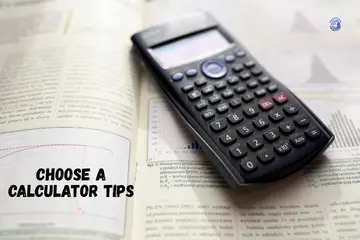
Few Year ago, I stayed in Berlin for a semester, I realized that picking the right tool is a big deal. Most people think any device with buttons will do, but knowing how to choose a calculator saved my grades and my sanity. It is not just about math; it is about finding a partner for your brain. I have spent years testing these tools, and I want to share what I learned so you do not waste your money.
Why Choosing the Right Calculator Actually Matters
I learned this the hard way during a rushed exam morning. The wrong calculator can slow you down, confuse you, or even get you disqualified.
One wrong calculator can cost time, money, or marks
I once brought a high-tech model to a test that only allowed basic ones. The proctor took it away. I had to do long division by hand, and it was a mess. A bad fit costs more than just the price on the tag; it costs you peace of mind.
Different tasks need different calculator features
A tax prep job needs a “Tax+” key. A physics class needs “Sine” and “Cosine.” If you use a tool built for a store clerk in an engineering lab, you will struggle. Your tool must match your task perfectly.
When “any calculator” is not enough anymore
Your phone is great for tips at dinner. But for real work, you need physical buttons. Tactile keys help you type without looking. This speed is vital when the clock is ticking or your boss is waiting.

Start With Your Purpose, Not the Price
Before brands or buttons, stop and think about what you actually do in a normal day.
For students (school, college, exams)
- Basic arithmetic vs scientific needs: Young kids just need the big four (+, -, x, /). High schoolers need logic and powers.
- Exam board restrictions: This is the most vital step. Always check the “Approved List” for your specific board.
- Memory recall and fraction handling: Look for a “Natural Display.” It makes fractions look like they do in a book. This stops simple errors.
For office work and business
- Percent, tax, profit margin keys: These save you three or four clicks every time.
- Large display and fast input: In an office, you want a big screen you can see from a distance.
- Desk vs portable calculators: Big keys are better for desks. Slim ones are best for meetings on the go.
Engineers, programmers, and scientists
- Scientific vs graphing: Scientists need logs and stats. Engineers often need to see the shape of data on a graph.
- Equation solving and matrix support: High-level models can solve for “X” instantly.
- Programmable functions: If you do the same math ten times a day, code it into a shortcut.
For daily home use
- Bills, shopping, quick math: You just want something that turns on fast.
- Simple layout, fewer buttons: Too many keys just get in the way when you are checking a grocery bill.
- Battery life over advanced features: A solar strip is a lifesaver here. It will sit in a drawer for a year and still work.
Types of Calculators Explained (Plain and Simple)
Standing in a store aisle, all calculators look the same, until you know what type you’re holding.
Basic calculators
These are the classics. They handle the “Big Four” math rules. They are cheap, tough, and great for your kitchen drawer or a retail shop.
Scientific calculators
These add keys for pi, square roots, and trigonometry. If you are in 9th grade or higher, this is usually your baseline. They are the “Swiss Army Knives” of the math world.
Graphing calculators
These have big screens. They can draw lines and curves. They are like small computers. Graphing calculators are pricey but a must for calculus and high-level physics.
Financial calculators
These have weird keys like “NPV” and “IRR.” They are for money experts. If you are calculating a home loan or a bond yield, this is your best friend.
Key Features You Should Never Ignore
This is where most people regret their purchase, after one week of real use.
Display type and size
- Single-line vs multi-line: Multi-line is better. It lets you see what you typed and the answer at the same time.
- Natural textbook display: This shows math exactly as it appears in your notes. It makes it much easier to spot a typo.
Button feel and layout
- Tactile feedback: You want a “click.” Soft, mushy buttons lead to missed digits and wrong answers.
- Spacing for fast typing: If the keys are too close, you will hit two at once. Give your fingers some room.
Memory and history functions
I love a “History” key. It lets you scroll up to see what you did five minutes ago. This is great for long tax forms or multi-step science labs.
Power source
- Solar, battery, or dual power: Dual power is king. The solar panel works in the light, and the battery kicks in during a dim exam hall. I never trust a device that is battery-only without a backup.
Calculator Rules for Exams and Classrooms
Nothing hurts more than bringing a calculator, and being told you can’t use it.
School and board restrictions
Most schools ban “CAS” (Computer Algebra System) models because they solve the math for you. They also ban anything that connects to the internet or has a QWERTY keyboard.
SAT, GCSE, HSC, engineering entrance exams
- Typical approved types: Most boards love the Casio fx-83 or the TI-30 series.
- Why simple is safer: If you bring a model that is “too smart,” you might spend the whole test trying to prove you aren’t cheating.
Brand Matters More Than You Think
After using calculators daily, some brands just feel… reliable. Others don’t.
Trusted calculator brands
- Casio: They make the best budget-friendly, high-feature models.
- Texas Instruments (TI): The standard for US schools. They last forever.
- Sharp: Known for great screens and “WriteView” tech.
Expert advice from math teachers and engineers
I’ve talked to many pros, and they all say the same thing: stick to what the teacher uses. If your teacher uses a TI, buy a TI. You don’t want to be the only one who can’t follow the lesson because your buttons are in different spots.
Cheap calculators vs trusted brands
Generic brands often have “ghost” inputs where a button press doesn’t register. Or the screen fades after a month. Spending $5 more for a brand name is worth it for the build quality.
Comfort, Size, and Daily Handling
You’ll touch this thing hundreds of times. Comfort is not a luxury.
- Pocket vs desk: If you travel, get a clamshell case to protect the screen.
- Weight and grip: You don’t want it sliding across the desk while you type.
- Noise level: Clicky keys are good, but “loud” keys will annoy everyone in a quiet exam hall.
Budgeting Smart Without Overbuying
More money doesn’t always mean more usefulness.
Best price range for each type
- Basic: $5–$15.
- Scientific: $15–$30.
- Graphing: $90–$150.
Features you’ll never actually use
Unless you are a pro, you don’t need 3D graphing or color screens. They look cool but drain the battery and cost way too much.
When spending more does make sense
Spend more for a better screen. Your eyes will thank you. A clear, high-contrast screen prevents fatigue during long study nights.
Real-Life Buying Checklist (Before You Click “Buy”)
This is the mental checklist I now run through, usually while standing in a shop or scrolling at night.
Quick yes/no questions
- Is it allowed in my exam or workplace?
- Can I read the screen easily without squinting?
- Do the buttons feel firm and responsive?
One-minute decision rule for confused buyers
If you are a student, get a mid-range scientific model from Casio or TI. It covers 90% of all math needs for less than $25. It is the safest bet you can make.
Common Mistakes People Make When Choosing a Calculator
I’ve made at least two of these mistakes myself. Learn from them.
- Buying too advanced too soon: A graphing calculator in 6th grade is just a heavy toy.
- Ignoring exam rules: This is the #1 mistake. Read the syllabus first!
- Choosing price over usability: A $2 calculator that breaks during a test is the most expensive thing you’ll ever buy.
Final Recommendation
From my experience, the best calculator is the one you know how to use. I have seen students with $150 models fail because they couldn’t find the square root button. I have seen pros use $10 models to build bridges. Pick a reliable brand, check your exam rules, and make sure the buttons feel good. If you do that, you will have a tool that lasts for years.
FAQs
Choose a basic calculator with clear keys and a large display. It works well for home, school, or simple office work.
Pick a scientific calculator with trig, logs, and memory keys for STEM classes. Models like Casio and TI are common choices for students.
Engineers should choose an advanced scientific or graphing calculator with unit conversion and complex math features. Check course or workplace needs first.
Many math and science classes ask for graphing calculators like TI-84 or Casio fx models. Check the class list before you buy to avoid issues.
Choose a financial calculator with interest, amortization, and cash flow keys. Options like the HP 12C or TI BA II Plus are common in finance fields.
Yes. Online calculators and apps are fine for light tasks. But a physical calculator is faster and more reliable for long or repeated work.
Solar calculators last a long time and need no charge. Battery models are stronger in low light. Dual power options give you both benefits.

Co-Founder, Owner, and CEO of MaxCalculatorPro.
Ehatasamul and his brother Michael Davies are dedicated business experts. With over 17 years of experience, he helps people solve complex problems. He began his career as a financial analyst. He learned the value of quick, accurate calculations.
Ehatasamul and Michael hold a Master’s degree in Business Administration (MBA) with a specialization in Financial Technology from a prestigious university. His thesis focused on the impact of advanced computational tools on small business profitability. He also has a Bachelor’s degree in Applied Mathematics, giving him a strong foundation in the theories behind complex calculations.
Ehatasamul and Michael’s career is marked by significant roles. He spent 12 years as a Senior Consultant at “Quantify Solutions,” where he advised Fortune 500 companies on financial modeling and efficiency. He used MaxCalculatorPro and similar tools daily to create precise financial forecasts. Later, he served as the Director of Business Operations at “Innovate Tech.” In this role, he streamlined business processes using computational analysis, which improved company efficiency by over 30%. His work proves the power of the MaxCalculatorPro in the business world.
Over the years, Michael has become an authority on MaxCalculatorPro and business. He understands how technology can drive growth. His work focuses on making smart tools easy to use. Michael believes everyone should have access to great calculators. He writes guides that are simple to read. His goal is to share his knowledge with everyone. His advice is always practical and easy to follow.