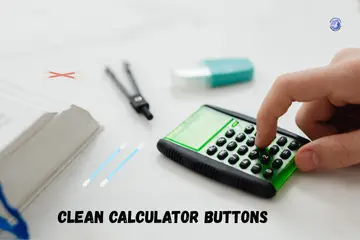
During a cold winter in Dresden, I spilled a bit of tea on my desk. My favorite math tool got sticky, and I knew I had to clean calculator buttons before the residue dried for good. I have spent years fixing small gadgets and teaching others how to keep their gear in top shape. It is a simple task, but you must do it the right way to avoid a broken screen. Let me show you how to refresh your device without any stress or high costs.
Why Calculator Buttons Get Dirty So Fast
I noticed this during a late study session, numbers sticking, buttons feeling greasy, calculator smelling faintly like coffee.
Daily handling and skin oils
Every time you touch a key, you leave a tiny bit of oil from your skin. Over weeks, this oil builds up. It acts like a magnet for dust and hair.

Food, dust, and classroom residue
Eating while you work is a common habit. Small crumbs fall into the tiny gaps between the keys. In a school bag, pencil lead and lint also find their way inside.
Why backpacks and desks make it worse
Backpacks are full of loose debris. If you do not use a hard cover, the keys rub against everything in your bag. This grinds the dirt deeper into the machine.
Signs Your Calculator Buttons Need Cleaning
The calculator usually tells you, just not in words.
Sticky or slow-return buttons
If you press a key and it stays down for a second, it is dirty. This “gummy” feel means there is sugar or oil under the plastic.
Missed or double inputs
Do you type a “5” and get two of them on the screen? Or maybe the number does not show up at all? This is a clear sign that dirt is blocking the signal.
Uneven button feel across the keypad
Some keys might feel clicky while others feel soft. A clean keypad should feel the same from top to bottom.
What You Should Never Use to Clean Calculator Buttons
I learned this one the hard way. One wrong liquid can end a calculator fast.
Excess water and soaking
Never dunk your tool in water. Liquids seep into the main board. This causes rust and short circuits that kill the device instantly.
Harsh cleaners and alcohol misuse
Bleach or strong window sprays can melt the plastic. They can also wipe the numbers right off the keys. High-strength alcohol can be too dry for the rubber inside.
Paper towels and abrasive cloths
Paper towels are rough. They can scratch the clear screen. They also leave behind small bits of lint that make the sticking problem worse.
Safe Supplies You Actually Need
Good news, you probably already have most of this at home.
Microfiber cloths
These are soft and catch dust without scratching. I use the same kind of cloth I use for my glasses.
Cotton swabs and soft brushes
A dry toothbrush or a cotton bud is perfect. They let you reach into the small cracks where your fingers cannot go.
Mild cleaning solutions
- Diluted isopropyl alcohol: Use 70% or less. Put it on the cloth, not the tool.
- Light soap and water mix: One drop of dish soap in a cup of water is plenty.
How to Clean Calculator Buttons Without Opening It
This is the method I use most, quick, safe, and no screwdriver stress.
Powering off and removing batteries
Always turn the power off first. If you can, take out the batteries. This keeps the electrical parts safe while you work.
Surface cleaning technique
Wipe the whole front with a damp microfiber cloth. Do not make it dripping wet. Just a light mist is enough to lift the oils.
Cleaning between and around buttons
Dip a cotton swab in your mix. Squeeze it so it is almost dry. Run it around the edge of each key to lift the hidden grime.
How to Deep Clean Sticky Calculator Buttons
This is for calculators that feel… gummy.
Targeted cleaning for stubborn residue
If one key is very stuck, use a tiny bit of alcohol on a swab. Gently press it into the gap and wiggle it. This breaks down the sugar or glue.
Repeating light passes instead of soaking
Do not try to fix it all in one go. Do a light clean, let it dry, and check the feel. Repeat this until the “click” comes back.
Drying time and airflow tips
Leave the tool face-down on a towel for an hour. This lets any trapped moisture fall out. A cool fan can help speed this up.
Should You Remove Calculator Buttons
Sometimes yes. Often no. This is where caution matters.
When button removal is risky
Most modern scientific models have keys that are part of one large sheet. If you pull one, you might rip the whole thing.
Calculator types that allow safer opening
Old desk models with big, chunky keys are easier to open. Still, I only suggest this if the “surface clean” fails.
Why most users should avoid full disassembly
Small springs and tiny screws are easy to lose. Unless you have a steady hand and a guide, keep the case closed.
Expert Advice: What Technicians and Teachers Recommend
When I asked educators and electronics techs, the advice was calm and clear, gentle always wins.
Technician tips on moisture control
Pros use “canned air” to blow out dust before using any liquid. This stops the dust from turning into mud.
Teacher advice for student calculators
Teachers suggest cleaning the tool once a term. This prevents the build-up that leads to exam-day failures.
Why light cleaning beats aggressive fixes
You can always clean more later. You cannot “un-break” a snapped plastic clip. Go slow and be light with your touch.
How Often You Should Clean Calculator Buttons
This depends less on time, and more on habits.
- Daily Students: Once a month.
- Office Use: Every three months.
- Storage: Clean it once before you put it in a drawer for the summer.
Common Cleaning Mistakes That Damage Calculators
Most damage happens with good intentions and bad methods.
- Too much liquid: It runs under the keys and ruins the chip.
- Pressing while wet: This forces moisture into the sensors.
- Ignoring batteries: Leaky batteries do more damage than dirty keys.
How Cleaning Extends Calculator Lifespan
Clean buttons aren’t just nicer, they last longer.
When you remove grit, you stop the plastic from grinding down. This keeps the “membrane” inside fresh. It also ensures your answers are always right because every press counts.
When Cleaning Isn’t Enough Anymore
Sometimes the button isn’t dirty. It’s done.
Permanent button failure signs
If the key feels “crunchy” or does not pop back up after a deep clean, the spring is broken.
Cost vs replacement decision
A basic model is cheap to replace. A $100 graphing tool might be worth a pro repair.
When to stop fixing and move on
If the board is corroded from a spill, it is time for a new one. Do not risk a wrong answer during a test.
Final Recommendation
In my expert view, the best way to clean calculator buttons is to use a slightly damp cloth and a soft brush. I have saved many tools this way without ever opening the case. I suggest you make it a habit to wipe your device once a month. This keeps the keys fast and the screen clear. If a spill happens, act fast but stay gentle. A little care goes a long way in making your tool last for a decade.
FAQs
Use a soft cloth with mild alcohol. Wipe each key with light pressure. Avoid soaking the calculator.
Most buttons should not be removed. This can break clips or contacts. Clean from the top instead.
Dirt, skin oils, and drink spills can dry under keys. This makes keys slow or sticky over time.
Use only a damp cloth. Too much water can leak inside and damage the board or battery.
Yes. Removing dust and grime can make keys feel faster and more accurate when pressed.
Yes. Air helps blow dust from tight gaps without liquid. Use short bursts for best control.
Clean every few months or when keys feel slow or sticky. Regular care keeps the calculator working well.

Co-Founder, Owner, and CEO of MaxCalculatorPro.
Ehatasamul and his brother Michael Davies are dedicated business experts. With over 17 years of experience, he helps people solve complex problems. He began his career as a financial analyst. He learned the value of quick, accurate calculations.
Ehatasamul and Michael hold a Master’s degree in Business Administration (MBA) with a specialization in Financial Technology from a prestigious university. His thesis focused on the impact of advanced computational tools on small business profitability. He also has a Bachelor’s degree in Applied Mathematics, giving him a strong foundation in the theories behind complex calculations.
Ehatasamul and Michael’s career is marked by significant roles. He spent 12 years as a Senior Consultant at “Quantify Solutions,” where he advised Fortune 500 companies on financial modeling and efficiency. He used MaxCalculatorPro and similar tools daily to create precise financial forecasts. Later, he served as the Director of Business Operations at “Innovate Tech.” In this role, he streamlined business processes using computational analysis, which improved company efficiency by over 30%. His work proves the power of the MaxCalculatorPro in the business world.
Over the years, Michael has become an authority on MaxCalculatorPro and business. He understands how technology can drive growth. His work focuses on making smart tools easy to use. Michael believes everyone should have access to great calculators. He writes guides that are simple to read. His goal is to share his knowledge with everyone. His advice is always practical and easy to follow.