
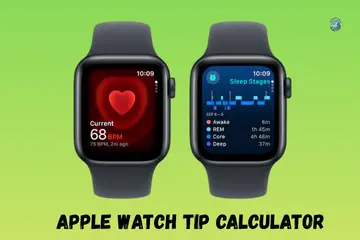
Dining out in Seattle last week, I faced a very annoying glitch. My friends waited while I tried to split the check on my wrist. It is a real pain when you find your apple watch tip calculator not working during a meal. I have used these watches for years and fixed many small bugs. Most of the time, the fix is very quick and simple to do.
Why the Apple Watch Tip Calculator Suddenly Stops Working
It always happens at the worst time. Restaurant bill arrives. Everyone’s watching. You tap your watch, but the math just does not happen. In my view, this is rarely a big hardware break. It is often just a small slip in the watch software.
Tip Button Is Missing
Sometimes the calculator opens without the TIP option. You might notice the split button is gone too. This is common after watchOS updates. The system may reset your view to a basic layout.
Tip Calculator Opens but Doesn’t Respond
There are times when the screen opens but the buttons don’t register. You tap the percent, but the amount won’t change. This happens most when the app has a small memory clog.
Tip Works Once, Then Breaks
It might work on the first try but freezes on the second bill. This is a sign of an app state error. The calculator is holding onto old data and cannot process a new sum.

Quick Checks Before You Blame the Watch
These take seconds. I learned this standing at a café counter while the line grew behind me. Always check these basics first.
Watch Battery and Low Power Mode
The tip feature may be disabled in low power mode. When your battery is red, the watch stops some smart tasks. App behavior changes to save every bit of juice it can.
Screen Lock, Water Lock, and Wet Fingers
Touch is often blocked by water lock. If you just washed your hands, moisture can cause missed taps. Wipe the screen dry with a napkin to make sure it can feel your touch.
App Layout and Calculator Mode
You might have the wrong calculator screen open. If you see scientific symbols, the tip button is hidden off view. Swipe or change the layout back to the basic grid.
How to Restart the Calculator App Properly
This fixes more than people expect. It feels too easy, but it works. A fresh start clears out the glitches that stop the math.
Closing and Reopening the Calculator App
Use the proper swipe method to kill the app. Press the side button to see your open apps. Swipe left on the calculator and tap the red X. Reopening it often brings the tip button back.
Restarting the Apple Watch
If a force-close fails, try a soft restart. Hold the side button until you see the power icon. Turn it off, wait a bit, and turn it back on. This is the best fix for a stubborn app.
watchOS Update and Software Bugs
Most tip issues start right after an update. Apple adds new code that might not play nice with your old settings.
Tip Calculator Broken After watchOS Update
You might find missing features or app crashes. This happens when the update changes how the “Tip” button is shown. A quick check in your settings can usually turn it back on.
Incomplete or Stuck Updates
Updates can pause overnight if the watch is not on its charger. If the storage is full, the app might not work right. Make sure your update is fully done before you head out.
Calculator App Settings That Break the Tip Feature
The calculator works. The tip settings don’t. This is usually due to a mismatch in how the watch sees your location.
Region and Currency Settings
The tip feature is disabled in some regions where tipping is not common. If your watch is set to the wrong country, the button may vanish. Check your iPhone settings to match your current spot.
Language and Number Format Issues
Decimal confusion can lead to rounding errors. If your number format uses commas instead of dots, the math might look “off.” Keep your language settings clear and correct.
iPhone and Apple Watch Sync Problems
The watch doesn’t work alone. The phone matters. The watch is a mirror of what is on your phone for most Apple apps.
Calculator App Disabled on iPhone
If you remove the app from your phone, it may hide on your watch. Check your home screen to see if the app is still there. If you see a cloud icon, you need to download it again.
Bluetooth and Background Sync Issues
A partial disconnection can cause delayed updates. If your watch and phone are not talking, the app may lag. Keep your Bluetooth on for a smooth link.
Touchscreen Issues That Affect Tip Selection
The tip buttons are small. Touch problems show here first because the “10%” and “15%” icons are tiny.
Missed Taps on Tip Percent Buttons
You might have dead zones on your screen. Screen protectors can also cause interference. If you have to tap five times to get a response, the glass might be dirty or blocked.
Digital Crown Interrupting Input
Accidental scrolling can change your tip mid-calculation. If your sleeve hits the crown, the input resets. I try to keep my wrist clear when I am splitting a big bill.
When the Tip Amount Is Wrong
This causes awkward moments at the table. You want to pay your fair share, but the math is not right.
Rounding and Split Bill Errors
Odd cents can pop up during a split. The watch might round in a way you do not like. Double-check the per-person total before you put your card down.
Old Values Still Stored
A previous bill might affect a new one. If the app is not clearing its state, you might add a tip to an old total. Hit the “C” button to clear everything out first.
Third-Party Calculator App Conflicts
This happens after trying “better” calculator apps. Not every app is built as well as the one from Apple.
Default Calculator Replaced Accidentally
You might open the wrong app by mistake. If the tip feature is missing, check the icon. Third-party tools often look the same but lack the “Split Bill” button.
Permission and App Access Issues
Some apps need background refresh to work fast. If you disable this, the app may crash. Stick to the default app for the most reliable results.
Hardware Problems That Look Like Tip Failure
Software gets blamed first. Hardware sneaks in. A tiny drop can ruin how the touch sensor works.
Screen Damage or Touch Sensitivity Loss
Inconsistent response is a sign of a loose screen. You might see flickering digits if the cable inside is weak. This is a hardware issue that no reset can fix.
Internal Sensor or Logic Board Issues
Random app freezes can happen if the chip is too hot. If your watch feels warm during use, it might be struggling. Let it cool down and try again later.
Reset, Repair, or Replace: What Makes Sense
Not every problem needs a Genius Bar visit. You can do a lot to fix your watch at home.
Resetting Apple Watch Settings
When a restart fails, try to reset all settings. This wipes your choices but keeps your data safe. It is a great way to clear out a deep software bug.
When Professional Repair Is the Right Call
Total touch failure means you need a pro. If the app crashes every single time, the hardware is likely dead. In that case, a repair or a new watch is the best move.
How to Avoid Tip Calculator Problems Next Time
Small habits prevent awkward bill moments. I treat my watch with care so it is always ready for a dinner out.
Quick Restaurant-Use Habits
Dry your screen before you start tapping. Avoid rushing your inputs when the server is waiting. A steady, slow tap works best on the small screen.
App and Update Management Tips
Keep your watchOS current. Apple sends out fixes for these bugs all the time. Also, don’t force-close your apps every hour. Let the watch manage its own memory.
Final Recommendation
From my own years of use, I know these watches are very sturdy. If you find your apple watch tip calculator not working, start with a force-close of the app. It fixes nearly every software hang I have ever seen. If the button is still missing, check your region settings. Most of the time, the fix is right in your hand. Keep your watch clean and updated, and it will serve you well for years!
FAQs
The tip calculator may crash due to a watchOS glitch. A quick restart or update often gets it working again.
Wrong totals can happen when tax or tip settings are off. Check the app settings and try again.
Some Apple Watch models need watchOS updates to access the tip calculator. Update and reinstall if needed.
Slow load times often come from low memory. Close background apps or restart the Apple Watch.
Freezing can happen due to a software conflict. Updating watchOS usually clears the issue.
Yes. New updates can add bugs. Apple often rolls out small patches soon after to fix app features.
The feature runs on most newer Apple Watch models. Older models may need updates or may not support it at all.

Co-Founder, Owner, and CEO of MaxCalculatorPro.
Ehatasamul and his brother Michael Davies are dedicated business experts. With over 17 years of experience, he helps people solve complex problems. He began his career as a financial analyst. He learned the value of quick, accurate calculations.
Ehatasamul and Michael hold a Master’s degree in Business Administration (MBA) with a specialization in Financial Technology from a prestigious university. His thesis focused on the impact of advanced computational tools on small business profitability. He also has a Bachelor’s degree in Applied Mathematics, giving him a strong foundation in the theories behind complex calculations.
Ehatasamul and Michael’s career is marked by significant roles. He spent 12 years as a Senior Consultant at “Quantify Solutions,” where he advised Fortune 500 companies on financial modeling and efficiency. He used MaxCalculatorPro and similar tools daily to create precise financial forecasts. Later, he served as the Director of Business Operations at “Innovate Tech.” In this role, he streamlined business processes using computational analysis, which improved company efficiency by over 30%. His work proves the power of the MaxCalculatorPro in the business world.
Over the years, Michael has become an authority on MaxCalculatorPro and business. He understands how technology can drive growth. His work focuses on making smart tools easy to use. Michael believes everyone should have access to great calculators. He writes guides that are simple to read. His goal is to share his knowledge with everyone. His advice is always practical and easy to follow.