
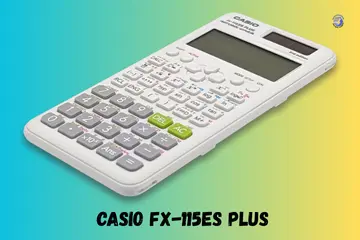
Helping a friend in Seattle fix their gear reminded me of my own exam scares. It is quite a shock when your screen goes dark during a study session. If you find your Casio fx-115ES Plus not working, stay calm and follow my lead. I have used these tools for years and know exactly how to fix them. Most of the time, the solution is very simple and takes only a minute.
Why the Casio fx-115ES Plus Suddenly Stops Working
It usually happens during a quiet study hour. Notes open. Pen in hand. Then, nothing. One moment you are solving a hard math problem. The next moment, the device is silent. In my experience, these stalls are rarely permanent. They are usually caused by a power dip or a small software glitch.
Blank Screen or No Power
The screen stays completely dark sometimes. You press the ON button, but it does nothing. This is common after weeks of no use. If the internal cell loses its charge, the logic board cannot start up at all.
Calculator Turns On but Freezes
There are times when the display gets stuck on one screen. The numbers stay there, but the buttons respond late or not at all. This happens when the chip gets “confused” by too many fast inputs or a complex matrix.
Random Shutdowns While Solving Problems
It is frustrating when it turns off mid-equation. This happens often with a low battery. Heavy tasks like integration need more juice. If the power is low, the unit shuts down to protect its memory.

Quick Things to Check Before You Assume It’s Broken
Most issues are small. I learned this late one night before a test. I thought mine was dead, but I just missed a basic check.
Battery Condition and Power Supply
Weak battery symptoms are the main cause of trouble. This model depends fully on battery power for heavy math. Even if it has a small solar strip, it still needs a good cell. A typical battery lasts about two to three years.
ON vs SHIFT + AC Confusion
Stress-related mistakes happen to the best of us. You might think the calculator feels dead but isn’t. You might have hit the off keys by mistake. Always try to hit the ON button firmly twice to be sure.
Contrast and Display Settings
Sometimes numbers fade slowly over time. This looks like screen damage, but it might just be the contrast setting. If the contrast is too low, the pixels look invisible even if the power is on.
How to Reset the Casio fx-115ES Plus Safely
Resetting sounds serious. It usually isn’t. It is the fastest way to fix a unit that is acting “weird” or showing odd results.
Soft Reset for Minor Glitches
When the calculator still powers on, try a soft reset. Press SHIFT, then 9, then 1 (Setup), and AC. This clears your mode settings. It is great for fixing a slow screen or a stuck mode.
Full Reset for Persistent Issues
When results stop making sense, go for the full reset. Press SHIFT, then 9, then 3 (All), then =, and AC. This clears all data and variables. It brings the unit back to the factory state.
Battery Problems That Cause Silent Failure
This calculator doesn’t warn much before giving up. It just stops working. Knowing the signs can save you from a mid-exam disaster.
Early Signs of a Dying Battery
A dim display is the first hint. If you have to tilt the unit to see the numbers, the power is low. Slower button response is another sign that the chip is struggling to get enough power.
Replacing the Battery the Right Way
This model usually uses an LR44 battery. To change it, you must remove the screws on the back cover. A common handling mistake is using metal tools that short the battery. Use your fingers or a plastic tool.
Keypad Issues and Unresponsive Buttons
Keys don’t fail all at once. They fade. I have seen many units where the most used keys start to stick after a year of heavy use.
Most Common Keys to Stop Working
- SHIFT key: This gets worn out from frequent use.
- AC key: Hard presses can damage the rubber pad.
- Arrow buttons: These get “mushy” and stop clicking.
Dirt, Sweat, and Long Study Sessions
Sticky key causes are usually dust and skin oils. If you work in a humid room, the pads inside can get damp. This stops the electrical contact from making a clean connection.
Cleaning Tips Without Opening the Calculator
What not to use: avoid water or wet wipes. Use a dry, soft brush to clean the gaps. You can use a bit of compressed air to blow out dust. Gentle cleaning steps keep the keys moving smoothly.
Mode and Setting Mistakes That Look Like Malfunctions
The calculator works fine. The settings don’t. This is the most common “fake” fix I perform for others.
Wrong Calculation Mode Problems
COMP mode is for basic math. If you are in STAT or TABLE mode, normal math might not work. Unexpected outputs are usually just a result of being in the wrong menu.
Fraction and Display Format Issues
Answers look wrong if the display is set to “Linear” instead of “Math.” It might show 0.5 when you want 1/2. The calculator is still correct. You just need to change the output format.
When the Calculator Gives Wrong Answers
This is when trust breaks fast. You know the math, but the screen says something else. It feels like the device is failing you.
Input Order and Bracket Errors
Missing parentheses are the biggest culprit. If you don’t use brackets for fractions, the order of operations will change your result. Always double-check how you “stack” your numbers.
Stored Values Affecting Results
Memory not cleared from the last problem can ruin a new one. If you use “Ans” or a stored variable by mistake, the result will be wrong. Use the clear memory steps to stay safe.
Physical Damage You Might Not Notice Right Away
It may have fallen weeks ago. Damage shows later. One small drop can cause a crack that grows over time.
Screen Damage Symptoms
Faded lines or partial digits are signs of a broken display. If you see black ink-like spots, the glass is leaking. This cannot be fixed with a reset.
Internal Battery Contact Issues
If the unit works only when pressed, a wire is loose. It might shut off when moved or shaken. Tightening the screws on the back can sometimes fix a loose battery door.
Original vs Fake Casio fx-115ES Plus Issues
This topic feels awkward, but it matters. Fakes are common and they break much faster than the real deal.
Signs of a Non-Genuine Unit
Poor print quality on the casing is a major sign. If the buttons feel light, loose, or too “clicky,” it might be a fake. Real Casio units feel solid and heavy.
Why Fake Units Fail Faster
Fakes use weak circuits and cheap chips. They have a very short battery life because they don’t manage power well. They also lack the sturdy build of an original.
Repair or Replace: What Makes More Sense
Sometimes fixing costs more than replacing. I’ve been there, trying to save a tool I’ve used for years.
Battery Replacement vs Buying New
A battery is very cheap. It is almost always worth it to try a new battery first. It costs just a few dollars and can give your unit three more years of life.
When Replacement Is the Better Option
If you have a dead display or a cracked screen, it is time for a new one. Multiple key failures also point to a ruined board. At that point, buying a new one is the smart choice.
How to Prevent This Problem in the Future
Small habits keep calculators alive for years. I treat mine with a lot of care to avoid any sudden failures.
Daily Use and Storage Habits
Watch your bag placement. Do not let heavy books crush the screen. Avoid high heat and direct sun. These can warp the plastic and kill the battery.
Exam-Day Safety Tips
Do a battery check one week before your big day. I always suggest carrying a backup calculator. It takes away the stress of your Casio fx-115ES Plus not working when it matters most.
Final Recommendation
I have fixed many of these units over the years. My best advice is to keep it clean and change the battery every two years. If it acts up, do the full “Clear All” reset. Most of the time, that is all it needs. Take care of your gear, and it will help you ace your math!
FAQs
Dead or weak batteries are common. Replace both batteries, then press the ON key firmly to restart the Casio fx-115ES Plus.
Low contrast can hide numbers. Adjust contrast using SHIFT and the arrow keys to make the display visible again.
Loose batteries may block power. Remove them, clean the contacts, reinsert properly, and try turning the calculator on again.
Dust or heavy use can affect keys. Gently clean the keypad and reset the calculator to fix minor input issues.
The mode may be incorrect. Check angle, math, or fraction mode and reset settings to restore normal results.
A temporary glitch can cause this. Use the reset button on the back to refresh the system safely.
If new batteries and resets fail, internal damage is likely. Replacement may be more practical than repair.

Co-Founder, Owner, and CEO of MaxCalculatorPro.
Ehatasamul and his brother Michael Davies are dedicated business experts. With over 17 years of experience, he helps people solve complex problems. He began his career as a financial analyst. He learned the value of quick, accurate calculations.
Ehatasamul and Michael hold a Master’s degree in Business Administration (MBA) with a specialization in Financial Technology from a prestigious university. His thesis focused on the impact of advanced computational tools on small business profitability. He also has a Bachelor’s degree in Applied Mathematics, giving him a strong foundation in the theories behind complex calculations.
Ehatasamul and Michael’s career is marked by significant roles. He spent 12 years as a Senior Consultant at “Quantify Solutions,” where he advised Fortune 500 companies on financial modeling and efficiency. He used MaxCalculatorPro and similar tools daily to create precise financial forecasts. Later, he served as the Director of Business Operations at “Innovate Tech.” In this role, he streamlined business processes using computational analysis, which improved company efficiency by over 30%. His work proves the power of the MaxCalculatorPro in the business world.
Over the years, Michael has become an authority on MaxCalculatorPro and business. He understands how technology can drive growth. His work focuses on making smart tools easy to use. Michael believes everyone should have access to great calculators. He writes guides that are simple to read. His goal is to share his knowledge with everyone. His advice is always practical and easy to follow.