
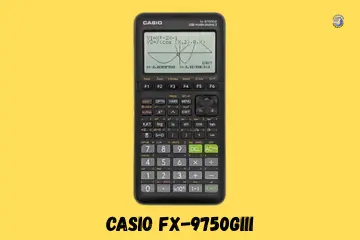
Helping a friend in Phoenix fix their graphing tool reminded me of my own study scares. It is quite a shock when your screen goes dark before a big project. If you find your Casio fx-9750GIII not working, stay calm and follow my lead. I have worked with these models for years and know their quirks well. Most of the time, the fix is much faster than you think.
Why the Casio fx-9750GIII Suddenly Stops Working
It usually happens mid-homework. Quiet room. Screen stares back, frozen. You are deep in a graph, and the unit just quits. Because this is a high-power tool, it acts more like a small computer than a basic device.
Black Screen or No Power
The screen stays dark sometimes. You press the power key, but it does nothing. This is common after long storage. If the internal juice is gone, the boot chip cannot even start the “hello” screen.
Calculator Turns On but Freezes
The unit might get stuck on the startup logo. Buttons lag or stop responding to your touch. This usually happens when the chip gets “tired” from too many lines of math or a complex data set.
Shuts Down While Graphing
It is annoying when it turns off mid-plot. This happens more with low batteries. Drawing complex curves takes a lot of energy. If the power is low, the system shuts down to save its memory.

Quick Checks Before You Assume It’s Broken
These take minutes. I once skipped them and lost half an evening. Always check the basics before you assume the hardware is fried.
Battery Type and Power Level
The fx-9750GIII uses four AAA batteries. Weak battery signs can look like a total crash. Never mix old and new cells. Doing so can cause leaks or uneven power flow.
Power Key vs RESET Hole Confusion
There is a tiny reset hole on the back. Many people miss it because it is so small. If the power key fails to wake the unit, this hole is your best friend. It forces the system to restart.
Screen Brightness and Contrast
The screen might look “off” but it isn’t. If the brightness is set too low, you cannot see the pixels. Hold the shift key and press the light button to see if the glow returns to the display.
How to Restart or Reset the fx-9750GIII Safely
Resetting sounds scary. Casio designed it for this. It is the best way to clear out a “brain freeze” in the system.
Soft Restart for Small Glitches
When menus still respond but feel slow, try a soft restart. Go to the system menu to find the reset option. Most of your main data stays saved here. It just cleans out the temporary cache.
Hard Reset Using the RESET Button
When frozen on startup, use a paperclip. Gently press the reset button on the back. This is a hard reset. You might lose some work, but it usually brings a “dead” unit back to life.
Battery Problems That Cause Silent Failure
This model is powerful, but it eats batteries. It has a fast processor and a large screen. You have to manage your power like you do with a phone.
Signs the Batteries Are Near Death
Sudden shutdowns are a big red flag. If the screen redraws slowly, the voltage is dropping. These are hints that your AAA cells are almost out of juice.
Best Battery Habits for This Model
Use high-quality alkaline cells. Some rechargeable ones have a lower voltage that may cause glitches. If you store the unit for a long time, take the batteries out to avoid leaks.
Operating System and Firmware Issues
Smart calculators bring smart problems. The fx-9750GIII runs on a complex system. Sometimes that software gets a “bug.”
Corrupted OS Symptoms
Boot loops are a clear sign of software trouble. This is when the logo appears and then the unit restarts over and over. You might also see white or blank screens that won’t go away.
Update Problems and Version Conflicts
Interrupted updates can “brick” the unit. Using the wrong region firmware is also a risk. Always make sure your laptop has a steady connection before you start an update.
USB and Computer Connection Problems
These issues often start in a school lab or library. Connecting to a PC adds another layer of complexity.
Calculator Not Detected by Computer
Cable quality issues are the usual cause. If your PC does not “see” the unit, try a different port. Some cables only charge and do not send data.
Stuck in USB Mode
Sometimes the unit won’t exit the connection screen after you unplug it. It stays stuck in “link” mode. You may need to press the EXIT key or hit the reset hole to get back to math.
Keypad and Navigation Button Failures
Buttons wear out quietly. You notice during exams. I have seen many units where the keys stop clicking after a year of heavy use.
Common Keys That Stop Responding
- Direction pad: This gets worn from moving the cursor in graphs.
- EXE key: This is the most used button and often fails first.
- AC key: Hard presses can damage the pad underneath.
Dirt, Oils, and Heavy Daily Use
Snack crumbs can get under the keys and stop the contact. Sweat and humidity also play a role. They can make the rubber pads turn sticky or soft over time.
Physical Damage You Might Miss at First
One drop from a desk can haunt you later. The internal parts are small and can shift.
Screen and Backlight Problems
Dark patches on the screen mean the pixels are damaged. Uneven lighting often comes from a drop that shifts the backlight. These issues usually need a pro to fix.
Loose Internal Battery Contacts
If the unit works only at certain angles, a wire is loose. It might shut off when moved or tapped on the desk. This is a sign that the battery springs are bent or loose.
Fake Units and Exam Approval Confusion
This comes up more often than people admit. Buying from a random seller online can lead to these odd issues.
Spotting a Non-Genuine fx-9750GIII
Check the box and label quality. If the print looks blurry, it might be a fake. Serial number issues are also a hint. Real Casio units have clear, engraved numbers.
Exam Mode Lock and Restrictions
The exam LED can be confusing. If it is blinking, you are in a locked mode. Some users think the unit is failing when it is just locked for a test.
Repair or Replace: What Makes Sense Here
Sometimes fixing costs more than replacing. I’ve learned that the hard way.
Battery Door and Contact Repairs
These are low-cost fixes. If a spring is bent, you can fix it with a small tool. It is worth trying if the rest of the unit is in good shape.
When Replacement Is Smarter
A dead motherboard is not worth the cost of repair. If you have repeated OS crashes after a reset, the memory chip is likely dying. Buying a new unit is the safer path for your grades.
How to Prevent fx-9750GIII Problems Long-Term
Small habits keep graphing calculators alive for years. I treat mine like a pro tool.
Daily Use and Storage Tips
Avoid heat and pressure. Do not leave it in a hot car. Safe backpack placement is key. Use a hard case to stop heavy books from pressing against the screen.
Exam-Day Survival Habits
Put in fresh batteries before every big test. I always suggest carrying a spare set in your bag. It saves you from stress when the “low battery” light blinks during a final.
Final Recommendation
In my experience, 90% of these issues are just old batteries or a software hangup. If your Casio fx-9750GIII not working, try the back-hole reset first. It is the fastest way to get back to your math. If that fails, swap all four batteries for a fresh set. These are sturdy tools, and a little care goes a long way.
FAQs
Dead batteries are the most common cause. Replace all batteries, then press the reset button to restore power and start the Casio fx-9750GIII again.
Loose batteries can stop power flow. Remove them, clean the contacts, reinstall correctly, and try the ON key again.
The contrast may be too low. Use SHIFT with the arrow keys to adjust contrast until the display becomes clear.
Heavy calculations can cause lag. Use the back reset button to refresh the system and clear temporary errors.
Dirt or wear can affect keys. Gently clean the keypad and reset the calculator to fix most button issues.
Wrong mode settings can change results. Check angle, graph, and calculation modes, then reset settings if needed.
If new batteries and resets fail, internal damage may exist. Replacing the calculator is often the best option.

Co-Founder, Owner, and CEO of MaxCalculatorPro.
Ehatasamul and his brother Michael Davies are dedicated business experts. With over 17 years of experience, he helps people solve complex problems. He began his career as a financial analyst. He learned the value of quick, accurate calculations.
Ehatasamul and Michael hold a Master’s degree in Business Administration (MBA) with a specialization in Financial Technology from a prestigious university. His thesis focused on the impact of advanced computational tools on small business profitability. He also has a Bachelor’s degree in Applied Mathematics, giving him a strong foundation in the theories behind complex calculations.
Ehatasamul and Michael’s career is marked by significant roles. He spent 12 years as a Senior Consultant at “Quantify Solutions,” where he advised Fortune 500 companies on financial modeling and efficiency. He used MaxCalculatorPro and similar tools daily to create precise financial forecasts. Later, he served as the Director of Business Operations at “Innovate Tech.” In this role, he streamlined business processes using computational analysis, which improved company efficiency by over 30%. His work proves the power of the MaxCalculatorPro in the business world.
Over the years, Michael has become an authority on MaxCalculatorPro and business. He understands how technology can drive growth. His work focuses on making smart tools easy to use. Michael believes everyone should have access to great calculators. He writes guides that are simple to read. His goal is to share his knowledge with everyone. His advice is always practical and easy to follow.