
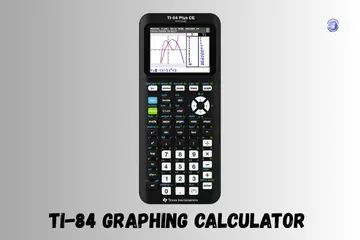
Moving to Phoenix taught me that heat and gadgets do not mix well. One hot morning, my own tool gave up just before a huge test. Dealing with a ti 84 graphing calculator not working feels like a total disaster in class. I have fixed dozens of these for my peers and myself over the years. Let me show you how to bring yours back to life right now.
Why Your TI-84 Stops Working Right When You Need It
It always happens on quiz day. Monday morning. Fluorescent lights humming, and nothing turns on. You stare at the dark screen and feel that sink in your chest. It is a common pain for students.
What “not working” really looks like
- The device won’t power on at all.
- The screen is blank or super faint.
- The buttons don’t respond when you press them.
- There is a random freeze during graphing.
- The battery drains way too fast.
Common root causes
- Dead or weak batteries or charging issues.
- Contrast turned way down so you can’t see text.
- Software glitch or a corrupted OS.
- A loose ribbon cable inside the case.
- Water damage or a physical impact. (Backpacks and lockers are villains sometimes.)

Start With Simple, Zero-Stress Checks First
Before tools. Before panic. Let’s look for quick wins. Most of the time, the fix is very simple.
Make sure it’s actually on
- Hold On for 10–15 seconds to force a wake-up.
- Try the reset combo: 2nd + Left + Right + On.
- Listen for faint clicks or beeps from the keys.
Adjust the contrast, seriously
Sometimes the screen is on, but it is too dim to see.
- Press 2nd then tap the Up Arrow repeatedly.
- Try doing this in bright light or near a window.
- Tilt the screen at a sharp angle to see “ghost” text. I always squint instinctively. It doesn’t help… but I do it anyway.
Give it real charging time
- Use the official USB cable if you can find it.
- Plug it into a computer USB port rather than a wall brick.
- Let it sit for 20–30 minutes before trying to turn it on.
When The TI-84 Powers On, But Acts Weird
Sometimes it “works,” but everything looks wrong. This usually means a setting is messed up.
Mode settings that break everything
Check these if your math looks like gibberish:
- Degree vs Radian: Make sure you are in the right unit.
- Sci vs Normal: Is it showing scientific notation by mistake?
- Table vs Graph: Is the screen stuck in the wrong view?
- Alpha Lock: See if the “A” icon is stuck on the screen.
Graphs not showing at all
- You might be zoomed way out on the axis.
- Check if your Plots are turned off in the Y= menu.
- Your window settings might be out of range.
Clear memory (safe way first)
- Press 2nd → + → 7 → 1 → 2. Your heart might race a bit when you do this. That is totally normal. It clears the RAM but keeps your main apps.
Software Glitches, When the OS Is the Problem
The calculator hardware is often fine, but the internal software is just confused.
Programs freezing the calculator
If you downloaded a game or a custom app, it might have a bug. Remove any suspicious apps and restart. You can always re-install them later if the device stays stable.
Reinstall / update the OS
If the screen stays glitchy, use your laptop.
- Install TI-Connect CE software.
- Connect via USB.
- Download the latest firmware or OS update from Texas Instruments. This often wipes away deep system bugs.
Battery and Charging Issues That Look Like “Total Failure”
This has happened to me at the kitchen table. Late. Rain outside. The device just dies.
Signs it’s just battery trouble
- The device shuts down at random.
- The screen looks very dim even with high contrast.
- It won’t hold a charge for more than an hour.
- It only turns on when it is plugged into a wall.
What to try
- Replace all the AAA batteries at the same time.
- Clean the battery contacts gently with a dry cloth.
- Try using a different USB port or a new cable.
Avoid these mistakes
- Never mix old and new batteries.
- Avoid using cheap, off-brand chargers.
- Do not force the battery door if it feels stuck.
Physical Damage, The Stuff We Don’t Want to Admit
Sometimes it drops. Or gets crushed in a bag. Or gets wet.
Screen damage clues
- Horizontal or vertical lines across the display.
- Half of the screen is missing or garbled.
- Dark black blotches that look like ink.
Internal issues
- A loose ribbon cable that connects the screen.
- Green rust or corrosion around the screws.
- Brown burn marks on the green circuit board.
What you should NOT attempt
- Do not press hard on the screen to “fix” lines.
- Do not use glue or tape on the internal parts.
- Avoid those “DIY fix” videos that use knives. Yikes.
Opening the Calculator (Only If You’re Comfortable)
This is optional. Be very careful and move slowly if you go this route.
Tools you’ll need
- A precision screwdriver (very small).
- A soft brush to remove dust.
- A tiny bit of isopropyl alcohol.
- A very bright workspace.
Check the ribbon cable
Open the back and look for the flat, wide cable. Reseat it gently if it looks crooked. Make sure it clicks in firmly but do not bend the plastic sharply.
Clean keypad contacts lightly
Give the board a light wipe with a cotton swab. Let it dry completely before you put it back together. My hands always shake a little doing this. It is totally fine.
When Repair or Replacement Makes More Sense
At some point, your time matters more than tinkering with a broken tool.
Try these first
- Check if your TI-84 Plus or TI-84 Plus CE graphing calculator is under warranty.
- Ask your school tech support if they have spare parts.
- Look for an authorized repair center in your city.
Replace when
- The screen is cracked into pieces.
- You have multiple failures at the same time.
- The repair cost is almost as much as a new calculator.
Simple Habits So Your TI-84 Stays Alive Longer
Small habits lead to a big payoff and less stress during finals.
Everyday care
- Always keep it in a protective hard case.
- Do not cram it under heavy books in your bag.
- Keep it away from high heat, humidity, and spilled drinks.
Light maintenance routine
- Wipe the screen and keys weekly.
- Update the OS once or twice a year.
- Remove the batteries if you won’t use it for a long time.
Quick “Oh No” Troubleshooting Cheatsheet
For those moments when your brain freezes, too.
| If you see this… | Do this first… |
| Blank screen | Adjust contrast (2nd + Up) |
| Won’t turn on | New batteries + Reset combo |
| Device is frozen | Clear RAM (2nd + Plus) |
| Not charging | Try a new USB cable or port |
| Still dead | Check warranty or hardware |
Final Recommendation
Fixing a ti 84 graphing calculator not working usually starts with the simplest check: the batteries. Most of the time, a fresh set of AAAs or a contrast adjustment will fix the issue. I have found that patience is the best tool you have. Take it step by step, and don’t panic!
FAQs
A frozen TI-84 graphing calculator often has low power or a crash. Replace the batteries and press the reset button to restart it.
This usually means the system is locked. Remove the batteries for a few minutes, reinstall them, and turn it on again.
A blank screen is often a contrast issue or weak batteries. Adjust contrast and install fresh batteries to restore the display.
Yes, weak batteries can stop graphs and keys from working. New batteries often fix the problem fast.
This can happen due to bad window settings or a paused graph. Reset the window and press Graph again to test it.
Press the small reset button on the back with a pin. This clears errors and fixes many TI-84 graphing calculator issues.
If resets and new batteries fail, internal parts may be damaged. At that point, repair or replacement is the next step.

Co-Founder, Owner, and CEO of MaxCalculatorPro.
Ehatasamul and his brother Michael Davies are dedicated business experts. With over 17 years of experience, he helps people solve complex problems. He began his career as a financial analyst. He learned the value of quick, accurate calculations.
Ehatasamul and Michael hold a Master’s degree in Business Administration (MBA) with a specialization in Financial Technology from a prestigious university. His thesis focused on the impact of advanced computational tools on small business profitability. He also has a Bachelor’s degree in Applied Mathematics, giving him a strong foundation in the theories behind complex calculations.
Ehatasamul and Michael’s career is marked by significant roles. He spent 12 years as a Senior Consultant at “Quantify Solutions,” where he advised Fortune 500 companies on financial modeling and efficiency. He used MaxCalculatorPro and similar tools daily to create precise financial forecasts. Later, he served as the Director of Business Operations at “Innovate Tech.” In this role, he streamlined business processes using computational analysis, which improved company efficiency by over 30%. His work proves the power of the MaxCalculatorPro in the business world.
Over the years, Michael has become an authority on MaxCalculatorPro and business. He understands how technology can drive growth. His work focuses on making smart tools easy to use. Michael believes everyone should have access to great calculators. He writes guides that are simple to read. His goal is to share his knowledge with everyone. His advice is always practical and easy to follow.