
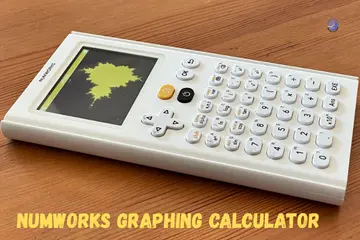
Moving to Phoenix taught me that heat and gadgets do not mix well. One hot morning, my screen just died right before a big test. Dealing with a NumWorks Graphing Calculator not working is a stress I know well. I have fixed many of these for my friends and myself over the years. Let me show you how to bring your tool back to life right now.
Why Your NumWorks Suddenly Stopped Working Today
Mine quit during a Tuesday quiz, right when the room got silent and my palms got sweaty. I stared at the dark plastic and felt my heart sink. It is a common pain, but most of the time, the fix is quite simple. Let’s start where problems usually begin.
Most Common Failure Points
- Battery drained fully or stuck in a “deep sleep” mode.
- Firmware glitch occurring right after a system update.
- Frozen screen or buttons that do not respond to touch.
- USB connection error when trying to sync or charge.
- Internal crash after installing custom Python apps.
- Physical damage from being tossed in a heavy backpack.
Quick Clues It Isn’t Fully Dead
- The screen lights up slightly but the menus do not respond.
- It shows the yellow logo and then shuts off fast.
- You hear buttons beep, but the screen does not change.
- It works when plugged in but dies the second you unplug it.

First: Try The Safe, Simple Checks
Just a couple of calm steps. No tools. No stress (okay… maybe a little). We want to rule out the small stuff before we move to the big fixes.
Wake It From Deep Sleep
Sometimes the battery protection circuit locks the device to save power.
- Hold the ON button for 10 to 15 seconds.
- Release it and then press it normally.
- Watch for a faint flash or the startup animation to appear.
Charge It Properly
Do not use that mystery wire from your junk drawer.
- Use a high-quality USB cable.
- Plug it into a wall charger rather than a laptop port first.
- Leave it for 20 to 30 minutes before you try to use it again.
Soft Reset (No Data Loss)
There is a tiny hole on the back of the device.
- Press the Reset pin gently with a paperclip.
- Wait 5 seconds for the system to clear.
- Turn it back on and check your settings.
When The Screen Is On… But Everything Looks Wrong
This is where it starts acting haunted. You might see lines, freezes, or random menus popping up. It feels like a software ghost is in the machine.
Frozen or Laggy Menus
This often happens if you have too many Python scripts or apps open at once. It can also be a sign that your firmware is having a “hiccup.” If the battery is very low, the processor might slow down to save power, causing that annoying lag.
Dim or Washed-Out Display
Check your lighting first. Bright classroom sunlight can make the screen look blank. Sometimes, the contrast gets adjusted by accident in your bag. If it happened right after an update, it is likely a software bug that a quick reset will fix.
Calculator Keeps Rebooting
This usually means your system files are corrupted. It happens if a firmware install was stopped too soon. It can also happen if the internal battery is not seated right and loses contact for a split second.
Real-Life Situations That Break NumWorks (Sadly Happens)
Because these problems never show up on calm weekends. They wait for the busiest days of the year.
Stuffed Into a Backpack, Buttons Pressed All Day
A hot bus ride and heavy notebooks can be a bad mix. If your buttons are held down for hours, the system might lock up. Fix ideas:
- Use the reset button on the back.
- Recharge the unit fully.
- Let it cool down to room temperature before testing it again.
Updated Firmware at Midnight, And Then Boom
I tried to update mine late at night and the wire slipped. The install froze halfway. Now nothing loads. Fix ideas:
- Reconnect it to your computer.
- Use the recovery mode on the NumWorks site.
- Try a different USB port to ensure a steady data flow.
Coffee Spill on the Desk (I Could Smell the Panic)
I once saw a display fade slowly after a spill and then just die. Fix ideas:
- Power off the device instantly.
- Do not try to charge it while it is wet.
- Let it dry for 48 hours in a dry spot and hope for the best.
USB + Firmware Fixes (The “Techy” Section, But Not Hard)
Take a breath. Go slow. This section saves a LOT of calculators that people think are broken for good.
Reinstall Firmware
Go to the official site and connect your USB wire.
- Use the web-based flasher tool.
- Follow the prompts on the screen.
- Whatever you do, do not unplug the wire early!
Enter Recovery Mode
If the normal update fails, you need to force it.
- Hold the Reset button and the Home button at the same time.
- Plug the USB wire into your computer.
- Reflash the system from the recovery menu.
Check Cable + Port
Avoid cables that are “charging-only.” You need a data cable. If your laptop does not see the device, switch ports. I find that direct motherboard ports on a PC work best for a steady link.
Hardware Checks, Only If You’re Comfortable
We’re not going full “electronics lab” here. We are just doing some careful observation to see if the body is okay.
Inspect the Case
Look for cracks around the corners or a warped back cover. If you see gaps near the screen, it might mean the battery has expanded or the device was dropped hard.
Battery Seating Problems
A loose battery connection is rare, but it can happen after a big drop. If the device only works when you squeeze the case, this might be the issue.
When There’s a Burning Smell (Yep… it happens)
- Stop using the device immediately.
- Do not plug it into a charger.
- Seek professional repair or contact support right away.
When You Should NOT Try DIY Anymore
There’s a point where saving time beats saving pride. If these things happen, it is time to call in the experts.
Call Support or Repair If:
- The screen is clearly cracked under the top surface.
- The USB port wiggles when you plug in a wire.
- The firmware will not reinstall even in recovery mode.
- The device gets very hot while it is just sitting on a charger.
Replacement vs Repair
Check your warranty first! NumWorks has a great team. Compare the repair cost to a new device. If you have big exams coming up, timing matters more than a few dollars.
How To Prevent “NumWorks Graphing Calculator Not Working” Next Time
Future you will be grateful for this part. A little care goes a long way in keeping your tech safe.
Storage Habits
- Keep it in a hard protective case.
- Never toss it in a bag near a leaky water bottle.
- Avoid leaving it on a sunny car dashboard.
Charging Habits
- Charge it once a week during the school season.
- Don’t let the battery run down to zero percent constantly.
- Use reliable wall chargers from big brands.
Update Smarter
- Only update when you have plenty of time.
- Never update five minutes before a big class.
- Keep the device plugged in and still while flashing the system.
Final Thoughts: Panic Less, Fix More
When your NumWorks stops working, it feels like your brain shuts down with it. But most problems come down to power, firmware, or simple resets. I have found that starting small and moving slowly is the best way to fix things. Most of the time, you will be back to graphing in just a few minutes.
FAQs
A NumWorks graphing calculator not working is often due to a low battery. Charge it fully, then restart it. A quick reboot fixes many basic issues.
If it will not turn on, the battery may be empty or frozen. Plug it in for 30 minutes, then hold the power key to wake it.
A black screen can happen after a crash or low power. Charge the device and restart it. If it stays blank, a reset may help.
Buttons may stop after a software glitch. Restart the calculator and try again. Clean hands and a dry surface also help button response.
This often means the system froze during startup. Hold the power button to force restart. Updating the software can prevent this issue.
Check the cable and power source first. Try a different USB port or charger. Dust in the port can also block charging.
Reset if restarts fail and errors keep showing. Back up data if possible, then reset. This clears bugs and restores normal use.

Co-Founder, Owner, and CEO of MaxCalculatorPro.
Ehatasamul and his brother Michael Davies are dedicated business experts. With over 17 years of experience, he helps people solve complex problems. He began his career as a financial analyst. He learned the value of quick, accurate calculations.
Ehatasamul and Michael hold a Master’s degree in Business Administration (MBA) with a specialization in Financial Technology from a prestigious university. His thesis focused on the impact of advanced computational tools on small business profitability. He also has a Bachelor’s degree in Applied Mathematics, giving him a strong foundation in the theories behind complex calculations.
Ehatasamul and Michael’s career is marked by significant roles. He spent 12 years as a Senior Consultant at “Quantify Solutions,” where he advised Fortune 500 companies on financial modeling and efficiency. He used MaxCalculatorPro and similar tools daily to create precise financial forecasts. Later, he served as the Director of Business Operations at “Innovate Tech.” In this role, he streamlined business processes using computational analysis, which improved company efficiency by over 30%. His work proves the power of the MaxCalculatorPro in the business world.
Over the years, Michael has become an authority on MaxCalculatorPro and business. He understands how technology can drive growth. His work focuses on making smart tools easy to use. Michael believes everyone should have access to great calculators. He writes guides that are simple to read. His goal is to share his knowledge with everyone. His advice is always practical and easy to follow.