
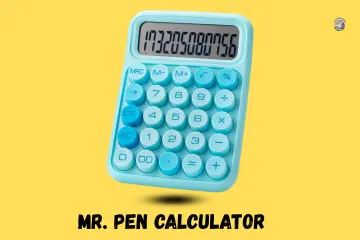
Finding your Mr. Pen calculator not working can truly stall your flow when you have a long list of tasks. While I was living in Denver, my own unit went dark just as I started my monthly budget. It felt like a small loss at first, but I soon found that a few easy tricks could bring it back. In this post, I will share my own story and the simple steps I used to fix mine.
The Day My Mr. Pen Calculator Went Silent
It was late afternoon at the desk, coffee cold, paperwork half done, then the display faded out.
What I was doing when it stopped
I was simply adding up some work expenses. The unit had not moved all day, and I was being careful with it. There were no drops and no spills on the desk. It just went blank while I was in the middle of a sum.
Why the moment and place mattered
The sky was cloudy, and my indoor lights were quite dim. Since many Mr. Pen models use solar power, they need a good light source. My desk was also a bit cluttered with papers. I realized I had not used the device for over a week, which can let the internal charge dip.

Common Reasons a Mr. Pen Calculator Stops Working
These calculators are simple, but the failures follow a pattern.
Weak or dead batteries
This is the main cause of most issues. You might see the screen slowly fading over a few hours. Sometimes the unit turns on for a second and then shuts right back off. If your buttons start to lag, your battery power is likely very low.
Solar panel not getting enough light
Overhead lights often do not give off enough energy for the solar strip. If you have dust on the panel, it blocks the light even more. Cloudy weather can also make it hard for the cell to keep the unit running.
Keypad contact problems
You might find that numbers work, but the plus or minus keys do not. This often comes from a mushy key feel. If you have to press a key many times to get a result, the internal contact is likely dirty.
LCD display issues
Missing digits on the screen are a sign of a loose connection. Sometimes the numbers are so faint they are hard to read. You might only be able to see the results if you tilt the device at a sharp angle.
Quick Fixes I Tried Before Giving Up
These took minutes and saved the calculator.
Simple power reset
I always try a reset first because it is so easy.
- Remove the battery from the back hatch.
- Hold the ON/CLEAR key for about 15 seconds to drain any left-over power.
- Put the battery back in and see if the screen wakes up.
Light test for solar-assisted models
Move your unit closer to a bright window. Avoid very harsh, direct sun, as that can bake the screen. Let it sit in bright, indirect light for a minute before you try to press any keys.
Button response check
Give every key on the keypad a firm press. I also like to give the back of the case a very gentle tap. I listen for any odd clicks that might mean a key is stuck in the “down” position.
How I Fixed a Mr. Pen Calculator That Looked Dead
The fix was boring, and that’s why it worked.
Battery replacement done properly
I went out and got a fresh battery. I did not use an old one from a drawer. I checked the plus and minus signs to get the polarity right. I also did a light cleaning of the metal tabs inside the hatch.
Cleaning the keypad without opening the case
I took a soft cloth and a tiny drop of alcohol. I wiped the keys to get rid of any sticky oils or dust. I made sure to let it dry fully so no liquid got inside the electronic parts.
The moment it came back on
The numbers snapped back on the screen, looking dark and sharp. The keys felt springy and quick again. It was a small win and gave me a sense of quiet relief to be back at work.
Signs Your Mr. Pen Calculator Is Beyond Repair
Some problems aren’t worth chasing.
Permanent screen damage
If you see black or ink-like blotches, the LCD is broken. A cracked display cannot be fixed at home. If you get no response at any angle with a new battery, the main chip is likely dead.
Internal hardware failure signs
Does the unit only work when you squeeze the frame together? That is a sign of a loose board. If it shuts off randomly or you hear a rattling sound inside, something has snapped.
How to Prevent Mr. Pen Calculator Problems in the Future
A few habits go a long way with budget calculators.
Better storage habits
Keep your calculator away from high heat and moisture. Do not keep it in a packed bag where the screen might get crushed. If you won’t use it for a long time, take the batteries out.
Smarter daily use
You do not need to mash the keys with a lot of force. I now wipe the dust off my unit once a month. It is also a good idea to test it once in a while just to keep the parts active.
When Replacing the Calculator Makes More Sense
Sometimes replacement beats repair.
Time vs cost decision
Most Mr. Pen models have a very low price. If you spend too much time trying to fix a cheap tool, you are losing money. There is also a risk of making math mistakes if the unit is truly glitchy.
What to look for in a replacement
Look for a unit that has both battery and solar power. This dual setup is much more reliable. Make sure the screen is easy to read and the keys feel firm when you press them.
Final Recommendation
Fixing my Mr. Pen calculator not working was a great way to save a few dollars. I found that a fresh battery and a quick reset solved the whole problem. If your screen goes blank, don’t panic! Give these steps a try, and you might be back to your math in just a few minutes.
FAQs
A Mr. Pen calculator not working often has a dead battery. Replace the battery or place it under bright light if it has a solar panel.
If it will not turn on, the battery may be loose or empty. Refit the battery, press the ON or AC key, and try again.
A blank or dim screen usually means low power. Change the battery or move the calculator to stronger light and test it again.
Wrong answers can come from stored memory or mode issues. Clear the memory, reset the calculator, and enter the numbers again.
Sticky or dusty keys can stop input. Clean the keypad gently and press each key firmly to restore normal response.
Yes, weak power can cause slow input or errors. A fresh battery often fixes most Mr. Pen calculator problems quickly.
If new batteries and resets do not help, the calculator may be faulty. Replacing it is often cheaper than repairing it.

Co-Founder, Owner, and CEO of MaxCalculatorPro.
Ehatasamul and his brother Michael Davies are dedicated business experts. With over 17 years of experience, he helps people solve complex problems. He began his career as a financial analyst. He learned the value of quick, accurate calculations.
Ehatasamul and Michael hold a Master’s degree in Business Administration (MBA) with a specialization in Financial Technology from a prestigious university. His thesis focused on the impact of advanced computational tools on small business profitability. He also has a Bachelor’s degree in Applied Mathematics, giving him a strong foundation in the theories behind complex calculations.
Ehatasamul and Michael’s career is marked by significant roles. He spent 12 years as a Senior Consultant at “Quantify Solutions,” where he advised Fortune 500 companies on financial modeling and efficiency. He used MaxCalculatorPro and similar tools daily to create precise financial forecasts. Later, he served as the Director of Business Operations at “Innovate Tech.” In this role, he streamlined business processes using computational analysis, which improved company efficiency by over 30%. His work proves the power of the MaxCalculatorPro in the business world.
Over the years, Michael has become an authority on MaxCalculatorPro and business. He understands how technology can drive growth. His work focuses on making smart tools easy to use. Michael believes everyone should have access to great calculators. He writes guides that are simple to read. His goal is to share his knowledge with everyone. His advice is always practical and easy to follow.